
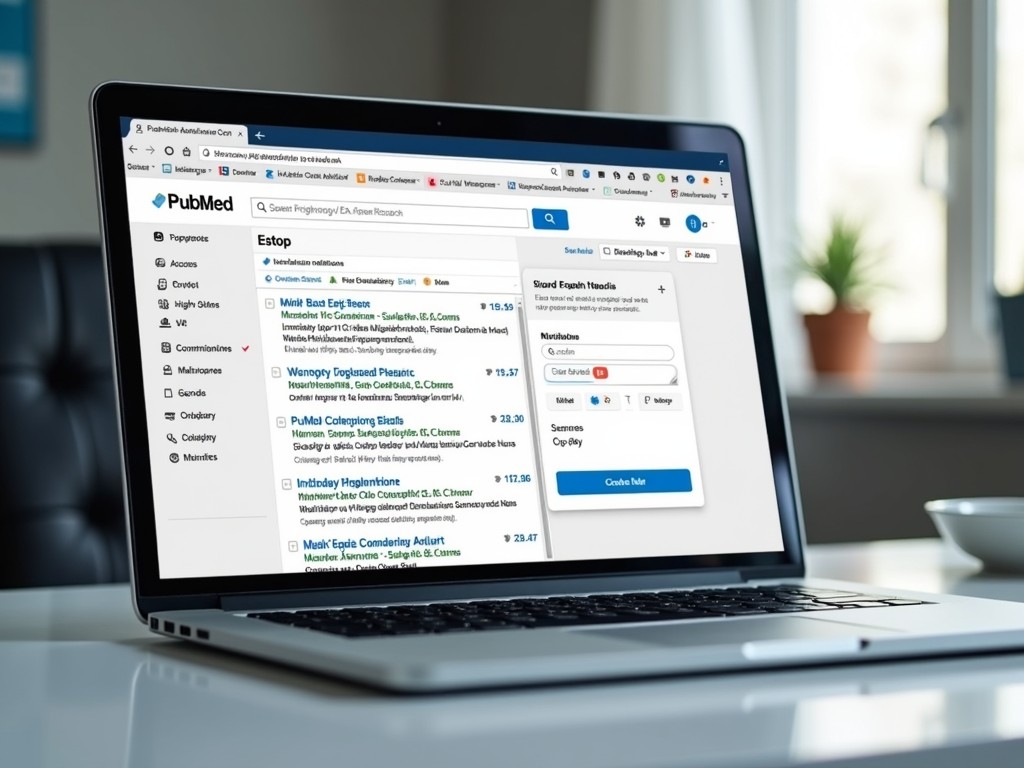
Keeping up with new research can feel like a second job—especially if you work across fast-moving fields. The good news: you don’t have to manually re-run searches every week. With PubMed email alerts, you can automate literature tracking so newly indexed, highly relevant papers arrive in your inbox on a set schedule. This guide walks you through how to save search strategy in PubMed, set up “Create alert” to receive weekly updates, and (optionally) create RSS feed PubMed for even more flexible monitoring.
Why PubMed Email Alerts Matter for Literature Tracking
PubMed is one of the most widely used biomedical literature databases. But even a great search strategy won’t help if you only run it sporadically. PubMed email alerts solve common workflow problems:
- Reduce missed papers: New publications and newly indexed records can appear daily.
- Save time: Automate monitoring instead of repeating manual searches.
- Improve consistency: Standardize updates across teams (students, labs, clinicians).
- Support systematic work: Keep a traceable, repeatable search history and alerts setup.
Whether you are preparing a grant, writing a review, tracking clinical evidence, or monitoring competitor research, saved searches and automated alerts can keep you continuously informed with minimal effort.
Before You Start: Build a Strong Save Search Strategy
The quality of your alert depends on the quality of your search. Before clicking “Create alert,” invest a few minutes in refining your query so your weekly emails are useful—not overwhelming.
Tips for building a reliable PubMed search
- Use MeSH where appropriate: Medical Subject Headings can improve precision (e.g., “Diabetes Mellitus, Type 2″[MeSH]).
- Combine MeSH + keywords: Add free-text terms to capture the newest articles not yet fully indexed.
- Use Boolean logic: Combine concepts with AND, synonyms with OR, and exclusions with NOT (carefully).
- Target key fields: Try title/abstract searches like term[tiab] for better focus.
- Test for relevance: Scan the first 20–50 results. If too broad, tighten with additional concepts; if too narrow, broaden synonyms.
Example: A balanced alert query
Here’s a practical structure you can adapt:
- Concept 1 (topic):
("type 2 diabetes"[tiab] OR "Diabetes Mellitus, Type 2"[MeSH]) - Concept 2 (intervention/exposure):
(GLP-1[tiab] OR "glucagon-like peptide 1"[tiab] OR "Glucagon-Like Peptide 1"[MeSH]) - Combine:
Concept1 AND Concept2
This kind of query tends to produce alerts that are both current and relevant, capturing newly published papers that may not yet have detailed indexing.
Step-by-Step: Set Up PubMed Email Alerts Using “Create alert”
Once your search looks right, you’re ready to automate it. PubMed’s alert system is tied to an NCBI account (free). You can still run searches without an account, but you need to sign in to save searches and receive emails.
1) Run your search in PubMed
Go to PubMed and enter your final query in the search bar. Apply any filters you truly want in your ongoing monitoring (e.g., article type, species). Note: some filters may exclude relevant items if you set them too narrowly.
2) Sign in to your NCBI account
Look for the sign-in option (NCBI). If you don’t have an account, create one—this enables saved searches, email preferences, and alert management.
3) Click “Create alert”
Near your results (typically above the list), select Create alert. This is PubMed’s built-in tool for turning your current search into an automated notification.
4) Name your saved search
Choose a clear, consistent naming format. Examples:
Alert - GLP1 - T2D - WeeklyAlert - Oncology - ctDNA - Monthly
A good naming convention makes it easier to maintain multiple alerts (especially if you monitor several projects).
5) Configure email frequency (weekly recommended)
Set the schedule to match your workflow. For many researchers, weekly is the best balance between staying current and avoiding inbox overload.
In your alert settings, you’ll typically be able to choose:
- Frequency: Daily / Weekly / Monthly
- Format: Summary vs. abstract view (varies)
- Number of items: How many results to include per email
If your field is very active, weekly emails with a cap on results can prevent overly long messages. If you routinely hit the cap, refine the query or add another targeted alert.
6) Confirm and save
Once saved, PubMed will begin sending emails on your chosen schedule whenever new records match your search. That’s your automated literature tracking system—no manual re-running required.
How to Manage and Edit Saved Searches
Over time, your interests evolve. PubMed makes it easy to update your saved searches so your alerts stay accurate.
Best practices for maintaining saved searches
- Review quarterly: Check if your alert is producing too many irrelevant hits or missing key papers.
- Adjust synonyms: Add new terminology as the field changes (e.g., new assay names, new drug codes).
- Split broad alerts: Instead of one huge alert, create two or three narrower alerts with higher precision.
- Document versions: If this supports a review project, keep a dated record of your save search strategy changes.
Optional: Create RSS Feed PubMed for Flexible Monitoring
Email isn’t the only way to track literature. If you prefer an app-based workflow (or want to route updates into a lab Slack channel, Notion page, or RSS reader), you can create RSS feed PubMed from the same search.
Why use an RSS feed instead of (or alongside) email?
- Centralize multiple topics: View many searches in one RSS reader.
- Automate downstream workflows: Some tools can convert RSS items into tasks, database entries, or notifications.
- Reduce inbox clutter: Keep alerts out of email while still monitoring frequently.
How to create an RSS feed from a PubMed search
- Run your PubMed search (the same one you want to monitor).
- Look for the option to create or access an RSS feed (often available from sharing or alert tools, depending on the interface version).
- Copy the RSS URL and paste it into your RSS reader (e.g., Feedly, Inoreader) or your automation tool.
Many researchers use both: email for the “must-see” search and RSS for secondary topics.
Common Mistakes (and How to Avoid Them)
- Setting alerts before refining the query: If the search is too broad, you’ll stop reading the emails. Tighten the query first.
- Relying only on MeSH: New papers may not be indexed immediately. Add keywords to capture early records.
- Overusing NOT: Excluding terms can accidentally remove relevant papers. Use exclusions sparingly and test them.
- Too many alerts with vague names: Naming conventions and periodic cleanup prevent alert sprawl.
FAQ: PubMed Email Alerts, Saved Searches, and RSS
How soon will a PubMed email alert start sending results?
After you save the alert, emails are sent on the schedule you choose (e.g., weekly). You’ll typically receive items added since the last run of that alert.
Can I change an alert from weekly to daily later?
Yes. You can edit the saved search settings in your account and adjust frequency, formatting, or other options.
What’s better: PubMed email alerts or an RSS feed?
It depends on your workflow. PubMed email alerts are excellent for high-priority topics you want pushed to you. If you prefer a dashboard-style view and integrations, create RSS feed PubMed and monitor multiple searches in one place.
How many saved searches should I maintain?
As many as you can realistically review. Many professionals maintain 3–10: a few core weekly alerts plus several lower-priority RSS feeds or monthly alerts.
Conclusion: Automate Your Reading, Not Your Judgment
PubMed’s “Create alert” feature is one of the simplest ways to stay current without constantly re-running the same queries. By building a solid save search strategy, setting up PubMed email alerts for weekly delivery, and optionally choosing to create RSS feed PubMed for a streamlined monitoring system, you can reduce missed papers and spend more time on analysis and decision-making. Set it up once, review it periodically, and let PubMed do the repetitive work for you.